
The invitation looks lovely. Then the start time changes.
If the time is trapped inside a finished image or video, a small correction becomes a hunt for the original design. Keeping the artwork, editable words and final export separate gives you a much simpler revision path.
Imagine a small sketch afternoon: the venue stays the same, but 2PM becomes 3PM. The illustrations here are fictional teaching examples created with AI, not a real event or tested video. We will plan the invitation so that its background can stay useful while the details remain easy to change.
Decide what needs to remain editable
Write the event facts in plain text before decorating anything: what is happening, when, where, and how someone should respond. Check these against the real organiser’s information when making your own invitation.
Give the event name a clear position, then group the date and time so they are easy to find. Leave enough room for a longer venue name or a corrected time. Keep essential details visible throughout an animated invitation rather than making people wait for them to appear.
Use a design or video tool you already have that supports editable text and a saved project. Test that you can reopen a small sample and change a word before building the whole invitation. An exported MP4 or flattened JPG is a delivery copy; it does not retain the text objects that produced it.
Keep three different assets
Think of the invitation as three related pieces:
- Artwork: your permitted background image, or an optional background clip, with no event words baked into it.
- Editable project: the layout or timeline containing the artwork plus separate text objects. This is where you revise the time and place.
- Export: the still or video file you send. Make a new export after correcting the source project.
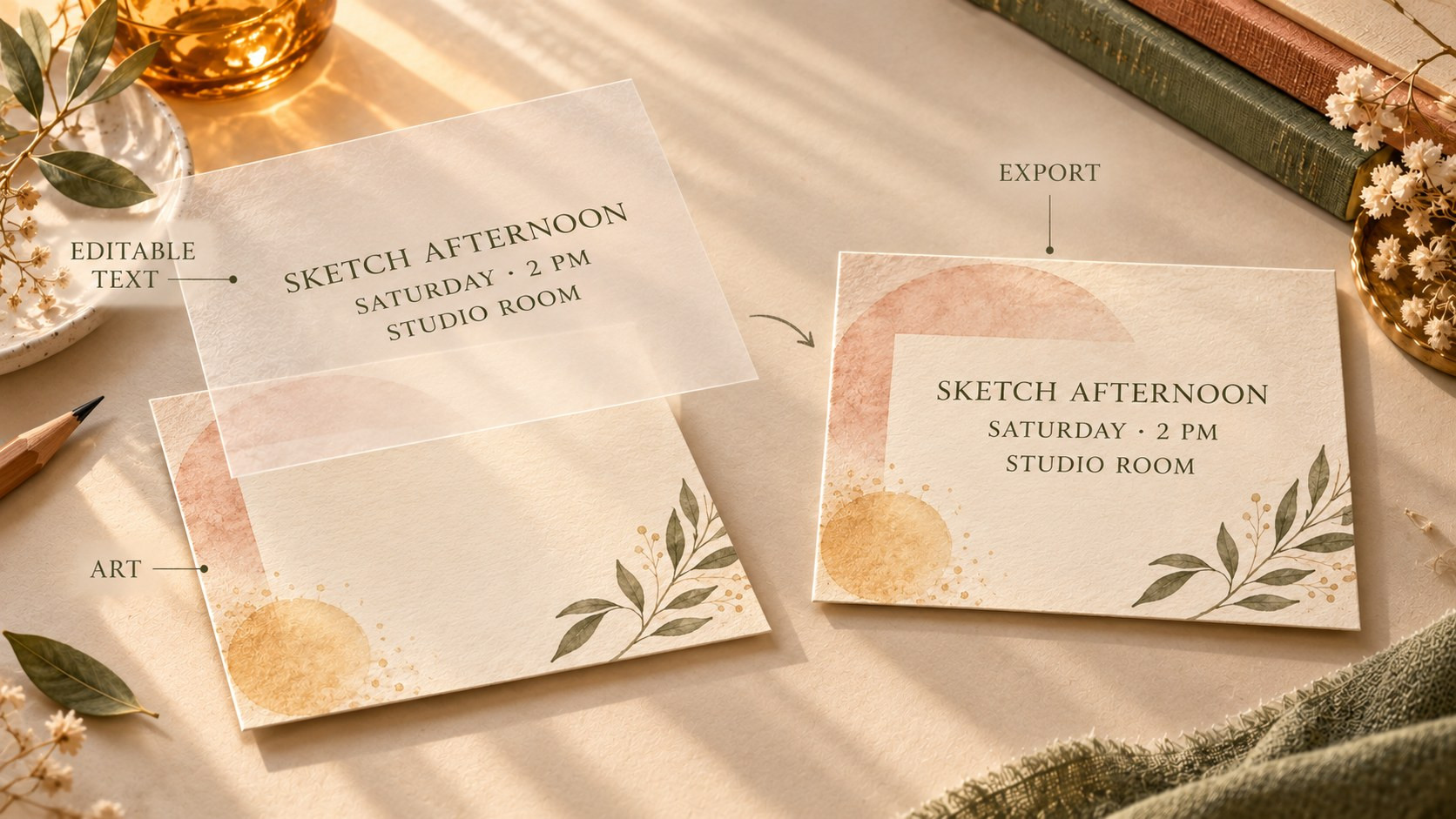
Three different things to keep: the artwork, the editable text in your project, and the combined export. The paper layers are a teaching illustration of that separation.
Our cream-paper example leaves its centre quiet, with colour and leaves near the edges. That open area gives the event details a stable place to sit. The separated sheets in the illustration explain the method; they are not a feature of a particular editor.
Save the project with its required artwork and any linked files. If your editor offers a collect/package option, use it; otherwise keep those files together and avoid moving them after linking. Close and reopen the project once to confirm that the background and text still load. Preserve a static invitation too, using the same verified information.
Add motion only if it serves the background
You can finish with the still artwork. If you want a little movement, prepare a text-free version first. For the documented generation route below, complete two separate compatible images before opening the tool: the starting background and the ending background.
In this example, only a small amber wash in one corner becomes slightly warmer. The arch, leaves, blank centre, framing and paper texture stay in place. Make the ending image on an authorised working copy, with the same dimensions and ratio as the first. Keep all dates, times and venue names outside both files.
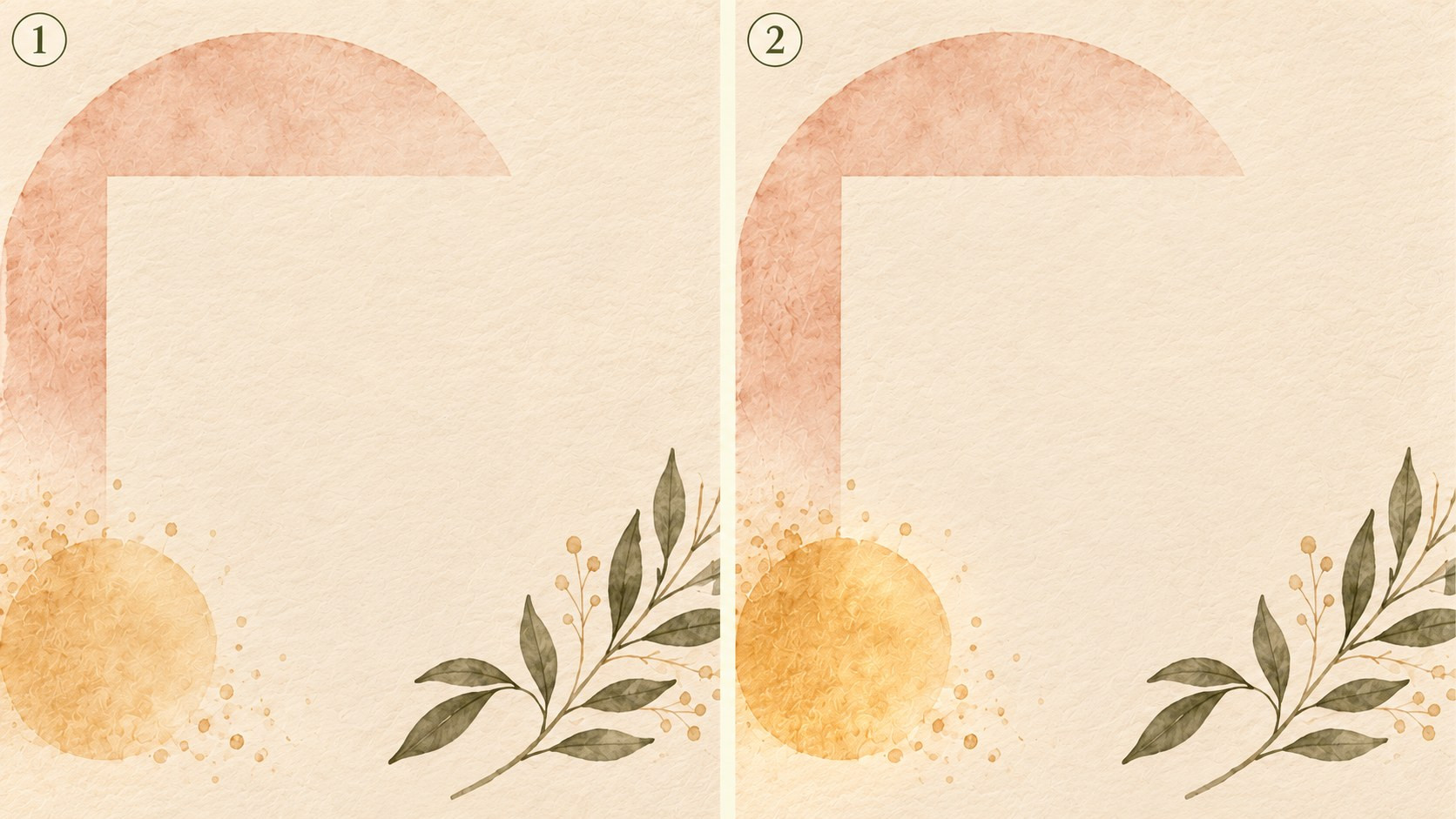
Plan a small change in the background alone: frame 1 is on the left, frame 2 on the right. For your own attempt, prepare two separate clean images without teaching numbers.
The numbered comparison is for explanation. Your actual inputs are two clean individual images, not the whole board. A useful motion prompt might be:
Keep the cream invitation background still. Only the small amber wash in the lower-left corner grows gently warmer between the supplied first and last images. Preserve the arch, leaves, paper texture and blank central area. No camera movement, new objects or lettering.
Keep prompts focused on the one visible change. If the artwork shifts or the centre becomes busy, reduce the endpoint difference rather than adding more effects.
Tool suggestion: OpenMaker is one option for the optional animation in this example.
On OpenMaker, supply the first and last images in order, add the prompt and select the ratio that matches your layout. Generate, wait for completion, preview the background, then download a version you want to use. According to its service description checked on October 28, 2026, the free route offers 5-second, 480p clips without signup or generation credits, with unlimited attempts. OpenMaker presents its linked free workflow as powered by MiniMax H3 and warns that requests may queue. These are published service descriptions, not results from a video test.
Check the whole background before importing it into your saved project. Watch for moving leaf edges, changing shapes or unexpected marks in the blank area. Keep the original still available if the motion distracts from the information. OpenMaker’s role ends with the background clip; add and revise the event text in your own editor afterward.
Change the details, then make a fresh export
Put the background below your text objects. Read the invitation at the size recipients are likely to see on a phone, including the smallest venue or response line. Preview the full clip to check that the changing corner colour never makes the text hard to read.
When the time changes, duplicate the saved project as a new revision. Change the time in its text object, check the date and venue against the organiser’s latest information, and export again. You do not need to regenerate the background just to replace a digit.
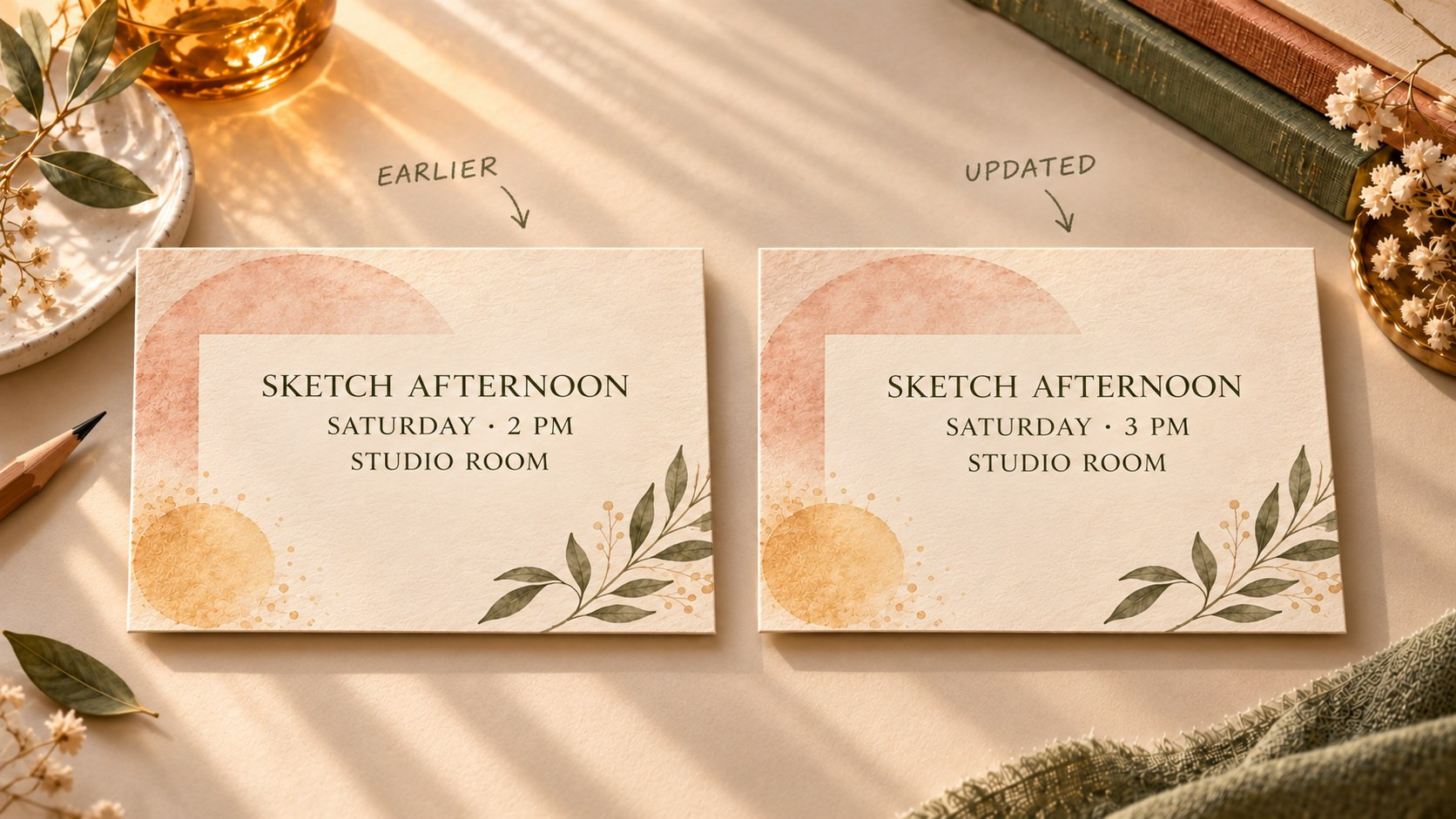
A text-only revision in the planned workflow: change 2PM to 3PM in the saved project, check the details, and export again. These are fictional illustrated proofs, not video-generator results.
Open the newly exported file—not just the editing project—and read every detail. Give it a clear revision name, keep the editable source, and set the earlier export aside so it is not sent by mistake. If an invitation has already been shared, send a plain-language correction as well as the updated file.
The goal is a small, reusable design package: artwork you can keep, words you can correct, and an export you have actually checked. A changed plan then becomes a manageable edit instead of a reason to start the invitation again.
Comments (0)
Want to join the discussion?
Log In to Comment